

Fun Synchronous Learning Activities for Online Learning
- Casey Medlock Paul

- Jul 23, 2020
- 3 min read
Updated: Jul 24, 2020
Research says that lectures should only be 5 to 10 minutes long--and if your students are young, even that might be pushing it! If you have more than 10 minutes of live lecture, break it down into chunks. In between, do activities! Activities give students the chance to engage with the material and interact with each other. The activities below are focused on activities for synchronous online learning, but they can be used in a tech-rich classroom as well.
Activity 1: 4 Corners
You've probably done this activity in your classroom before. You put up a picture or a word in each corner of the classroom, ask your students a question, and then they run to the corner that they identify with or that is true for them.
Here's how you can do this online!
This is a fun activity that allows you to assess student's listening skills, vocabulary, reading skills, as well as assess how they are feeling. The best part is it can be anonymous, which can help with student's anxiety as well as promote honesty about how they are feeling.
Almost all synchronous learning tools (Zoom, Collaborate, Google Hangouts, Skype, etc.) have the capability for students to annotate Powerpoint slides. You as the teacher can enable this.
For this activity, all you need to do is create a Powerpoint slide with a question and 4 (or more!) images or words, like the one below:

Have students choose a pointer and move the pointer over the image that they identify with. You and the students will be able to see each other's pointers! This is typically anonymous.
You can also do a multiple choice version and have students put their answers in a poll or in the chat window. Just label each photo A, B, C, or D. This would probably not be anonymous.
The multiple choice version of this activity can be done with PollEverywhere as well--just activate the poll and share your screen! You can set it to be anonymous or not.
Activity 2: Interactive Poll
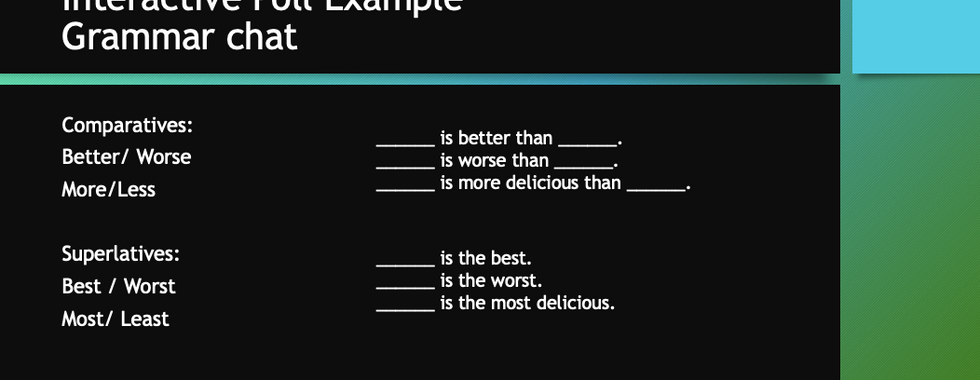
re y You can have students complete grammar exercises or answer short-answer questions using Poll Everywhere, the chat function, or the annotation function in your synchronous session. This can allow you to teach and assess grammar, vocabulary, or general concepts.
The slides below are an example of how I have done this. If I were teaching grammar (in English or a foreign language) I could give an explanation, such as is offered with my first slide. On the second slide, I would have students either write their sentences on my slide using annotation tools or submit their sentences in the chat.* I could add images, change the question (slide 2), or completely remove the question and words (slide 3) to make students have to remember vocabulary and grammar and practice listening. I could also use this activity to present scenarios (slide 4) and have the students talk about ways to respond or have them brainstorm different ways to write sentences and phrases (slide 5).











*In a lot of tools, like Blackboard Collaborate, annotation tools are anonymous while chat is not. Keep this in mind, as it matters whether you want your students to experience low-stakes anxiety or if you want to know who keeps writing inappropriate things. On that note, I always warned my students that if they wrote inappropriate things, the activity would be over and they would just do a BORING worksheet individually. I only had to bring out the worksheet once before they learned.
Activity 3: Taboo
This is an easy activity that requires no prep work and is great for working with vocabulary. You send a vocabulary word to a student in private chat (where none of the other students can see it). The students then describes the word without using the word (a la the game of Taboo) and then other students guess the word. Students can guess in the chat or by raising their virtual hand.
These are a few fun activities to do synchronously! Do you have any cool ideas to share? Post them in the comments!


Comments